Introduction:
Enabling the waitlist feature in your GymOwners.com account ensures that clients can still reserve a spot in fully booked sessions. This gives them the opportunity to join the class if another member cancels, helping you maximize attendance and improve the client experience. This guide will walk you through how to enable the waitlist feature for your group sessions. Once enabled, members can add themselves to a waitlist when a session is full, automatically taking the next available spot if someone drops out.
Process description:
Waitlists can be enabled by default through the Session Schedule settings found under Business Settings. This ensures all newly created group sessions have the waitlist feature automatically turned on. If you prefer not to have waitlists enabled by default, or if you want to adjust the waitlist setting for a specific session, you can manually toggle the waitlist on or off when editing that session in your schedule.
Step-by-step instructions:
To enable waitlists by default:
- In the top-right corner of the dashboard, click on the Profile icon.
- From the dropdown menu, select Business Settings.
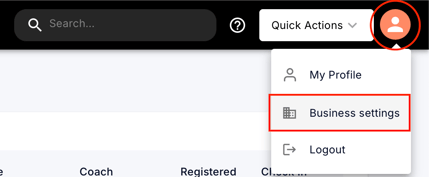
- Within Business Settings, click on Session Schedule on the left.
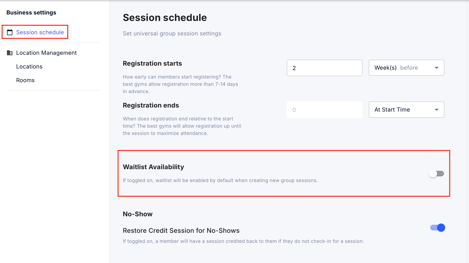
- Waitlist Availability: If toggled on, waitlist will be enabled by default when creating new group sessions.
To manually turn the waitlist on or off for a specific session:
Navigate to Schedule > Schedule.
Select the session you want to modify.
Click the Edit Session button.
Use the Waitlist Available? toggle to turn the waitlist on or off.
Tips and best practices:
- Always inform members that a waitlist is available to increase sign-ups even when sessions are full.
- Review attendance trends to anticipate which classes may benefit most from waitlists.
- Regularly monitor waitlist activity to optimize class capacity and scheduling.