Introduction:
Managing your client database is a key part of running a successful gym. Whether you're onboarding new members or collecting leads, adding contacts into GymOwners.com ensures you have the information needed to assign memberships, track engagement, and maintain effective communication. This guide outlines the steps to manually add a new contact in GymOwners.com.
Process description:
From the Contacts page you'll input essential contact details, create the contact record, and choose whether to leave them as a lead or immediately assign a membership plan.
Gathering materials/resources:
- Client’s full name
- Client’s email address (for login and communication)
- Optional: phone number, birthdate, start date, or additional notes
Step-by-step instructions:
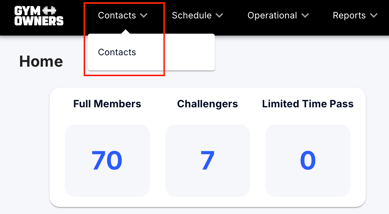
- In the top navigation bar, click on Contacts.
- From the dropdown menu, select Contacts.
- Once you are on the Contact page, click on the Add a new contact button.
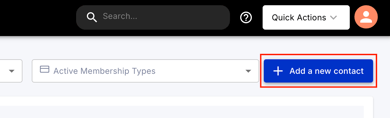
- This will open the Contact Information page, where you can input the contacts details.
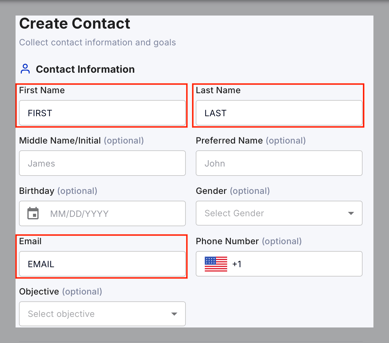
- On the Contact Information page, you’ll need to complete the following fields:
- First Name and Last Name: Enter the contact's full name.
- Email: Provide the contact's email address. This will be used to send verification and login details.
All other fields are optional.
- Click Create Contact to save.
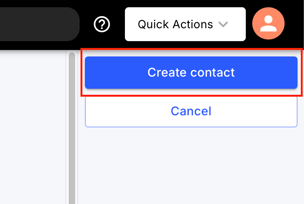
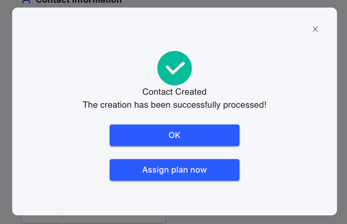
- Once Contact is created choose to leave as a lead or assign a membership plan.
- Click OK to leave as a 'lead' without assigning a membership.
- Click Assign Plan Now to assign a membership.
Tips and best practices:
- Collect as much information as possible upfront to streamline onboarding later.
- Use the “Assign Plan Now” option when enrolling a client into a challenge, trial, or paid membership.
Next steps:
- If the contact was left as a lead, you can return to assign a plan at any time.
- Review contact details regularly for accuracy.